GamepadTutorial Premium tutorial
From installation to your first match. Every screen of the program explained with real screenshots.
Install the program
You need a PC with 64-bit Windows 10 or 11. You don't need a physical controller: the program creates a virtual one.
- Go to My account and download the installer under Downloads.
- Open it. If Windows shows "Windows protected your PC", click More info and then Run anyway.
- Follow the wizard. It installs the program and the virtual Xbox controller driver. Restart your PC if it asks you to.
Tip: the program works in English and Spanish. The screenshots in this guide are in Spanish; you can switch the program's language in its settings (Configuración).
Activate your license
- In My account, click Copy next to your key.
- Open GamepadTutorial Premium, paste the key and click Activate.
- Done. Your license type appears at the top right (for example Permanent).
The license is linked to that PC. If you have Lifetime and switch PCs or reinstall Windows, go to My account and click Reset PC: the license is freed so you can activate it on the new one. You can do this as many times as you need.
Mapping: assign your keys to the controller
This is where you choose which key or mouse button triggers each controller button.
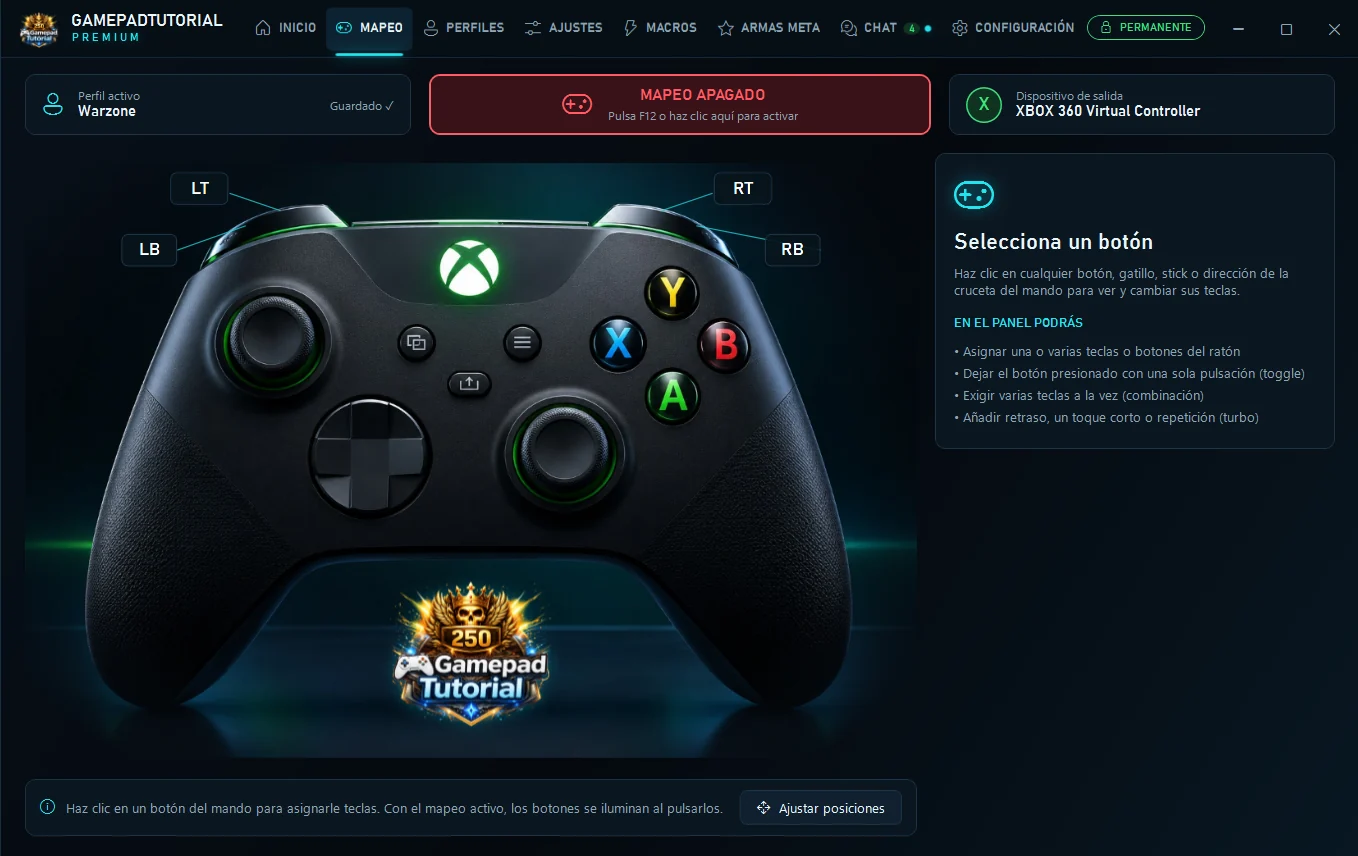
- Active profile. The profile you're using. "Saved ✓" means your changes are already saved.
- Mapping on or off. Click here or press F12 to turn it on. With mapping off, your keyboard and mouse work normally.
- Output device. The virtual controller the game receives: Xbox 360 Virtual Controller.
- Click any button, trigger, stick or D-pad direction to see and change its keys.
- Button panel. Assign one or more keys, keep the button held with a single press (toggle), require several keys at once (combo), or add a delay, a short tap or turbo.
- Adjust positions. Move the controller labels if you want them somewhere else.
Profiles: one for each game
Each profile stores its own keys, macros and settings, so you can switch games without setting everything up again.
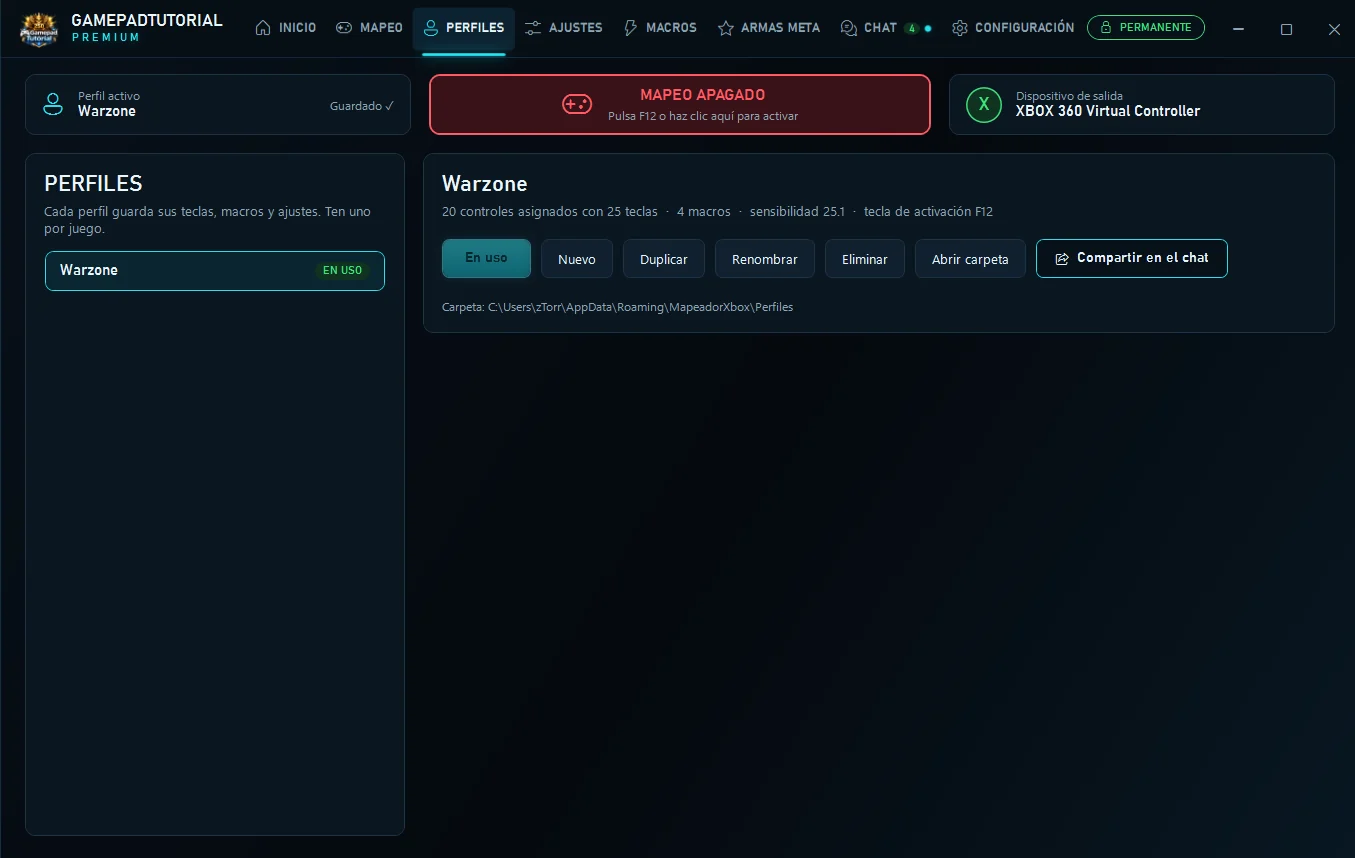
- Your profiles. Click one to see it. The one marked "In use" is active.
- Actions. Use it, create a new one, duplicate it to test changes, rename it or delete it. "Open folder" shows where they're saved.
- Share in chat. Post your aim settings (DPI, sensitivity, Hz) so others can import them. Only the settings are shared: never your keys or macros.
Aim settings
This is where you set how mouse movement becomes right-stick movement. Every option has an ⓘ in the program that explains what it does.
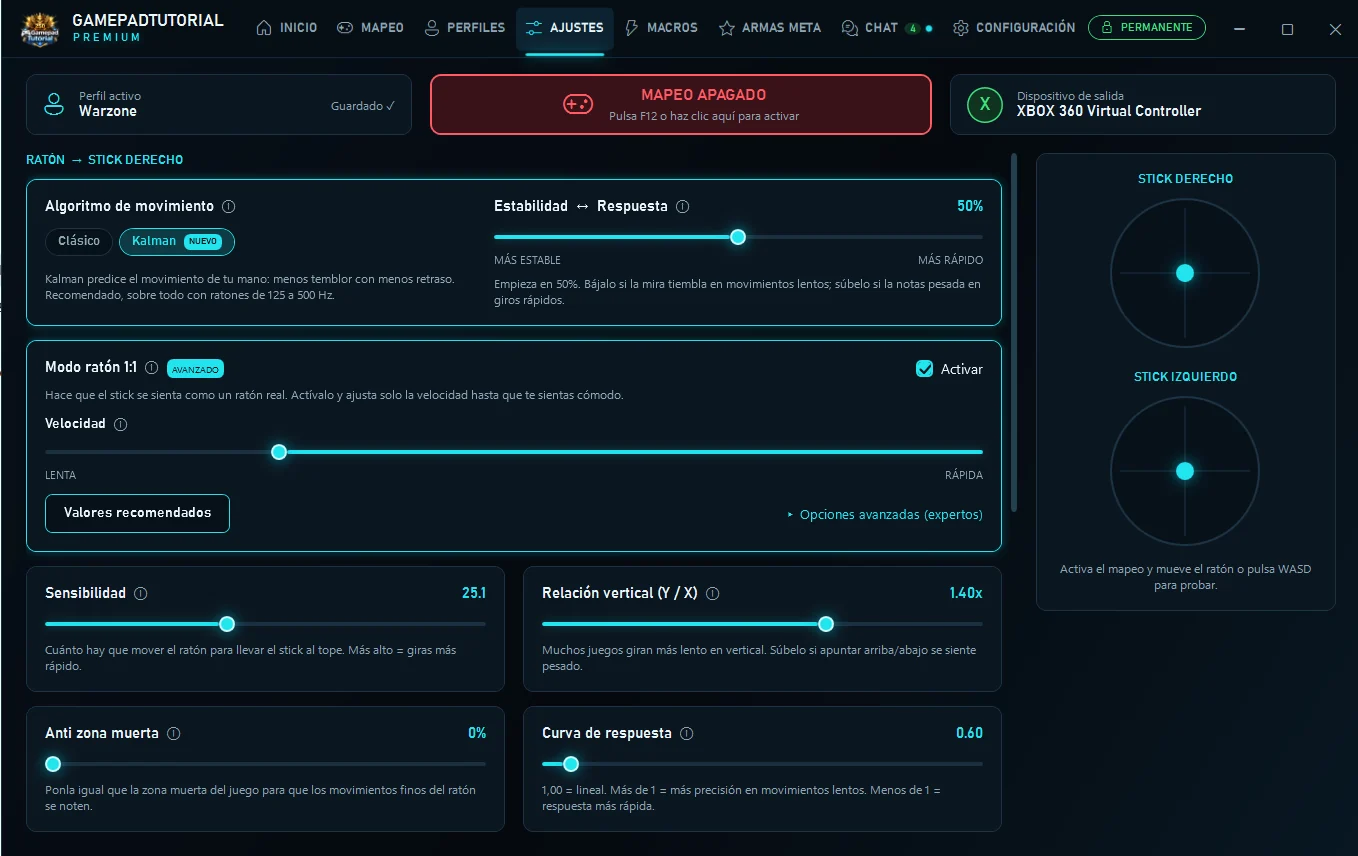
- Movement algorithm. Kalman predicts your hand movement: less jitter with less delay. Recommended, especially with 125 to 500 Hz mice.
- Stability ↔ Response. Start at 50%. Lower it if your aim shakes on slow movements; raise it if it feels heavy on fast turns.
- 1:1 mouse mode. Makes the stick feel like a real mouse. Turn it on and adjust only the Speed until it feels right. "Recommended values" resets it.
- Sensitivity and anti-deadzone. How far you need to move the mouse to push the stick all the way. Set the anti-deadzone to match the game's deadzone.
- Vertical ratio and curve. Many games turn slower vertically: raise it if aiming up or down feels heavy. Curve 1.00 = linear.
- Preview. Turn on mapping and move your mouse or press WASD to see the sticks live.
Tip: the chat has setups from other players. Import one as a starting point and tune it to your liking.
Macros
A single key fires a sequence of controller buttons, with the exact timing you choose.
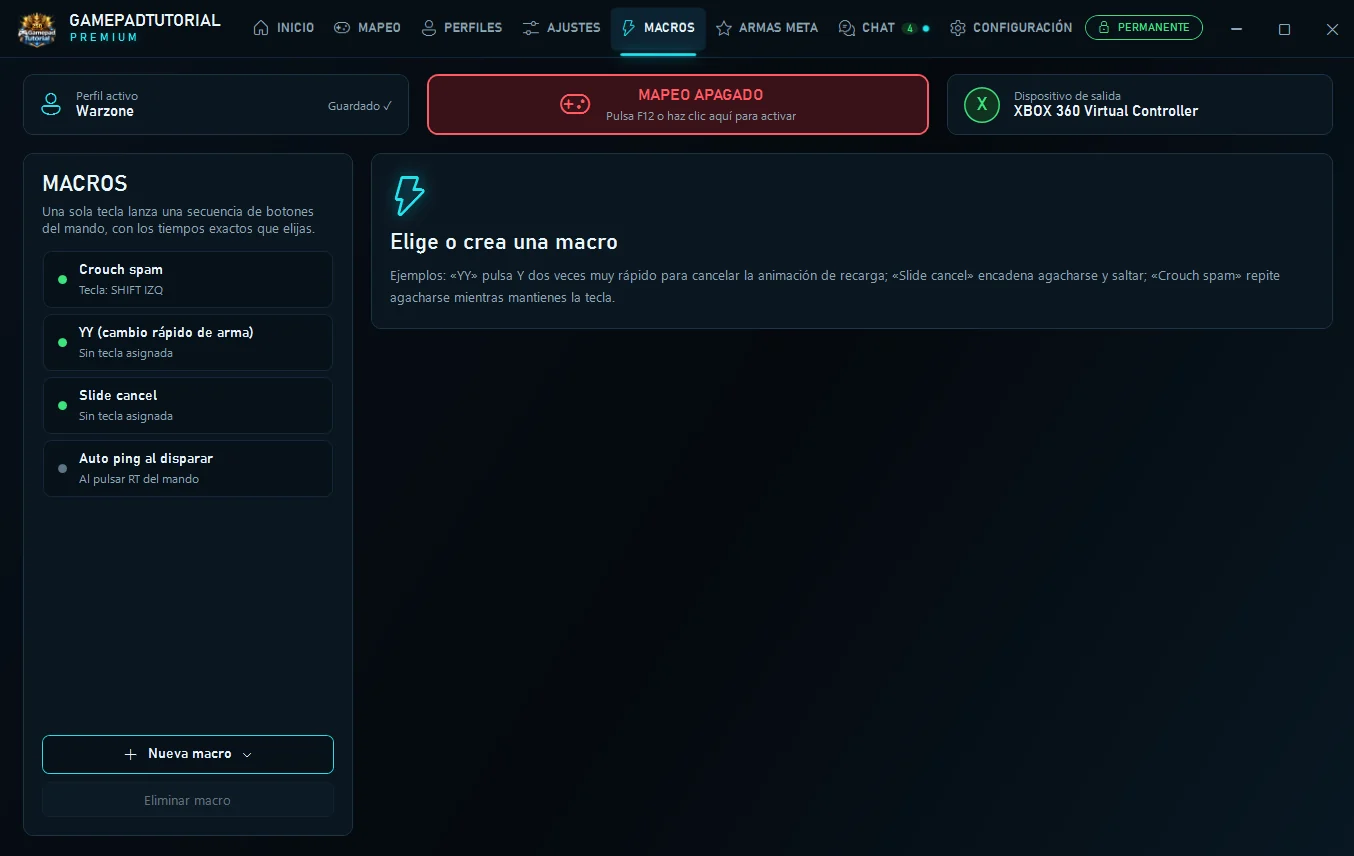
- Your macros. A green dot means it's on. Below it you see the key that triggers it.
- New macro. Start from scratch or from a template.
- Included examples: "YY" presses Y twice very fast to cancel the reload animation; "Slide cancel" chains crouch and jump; "Crouch spam" repeats crouch while you hold the key; "Auto ping" marks enemies when you shoot.
- Anti-recoil (hold until release). While you hold left click, the controller presses RT at the strength you choose and the right stick pulls down by a percentage (−6 % by default) to compensate recoil. On release, everything is released. Tune it by shooting at a wall until the crosshair stays still.
- In-game menu. Press Insert to open the app over the game (mapping pauses so you can use the mouse). Press it again to go back to playing. Change it in Settings. Set the game to "Borderless window".
Meta weapons
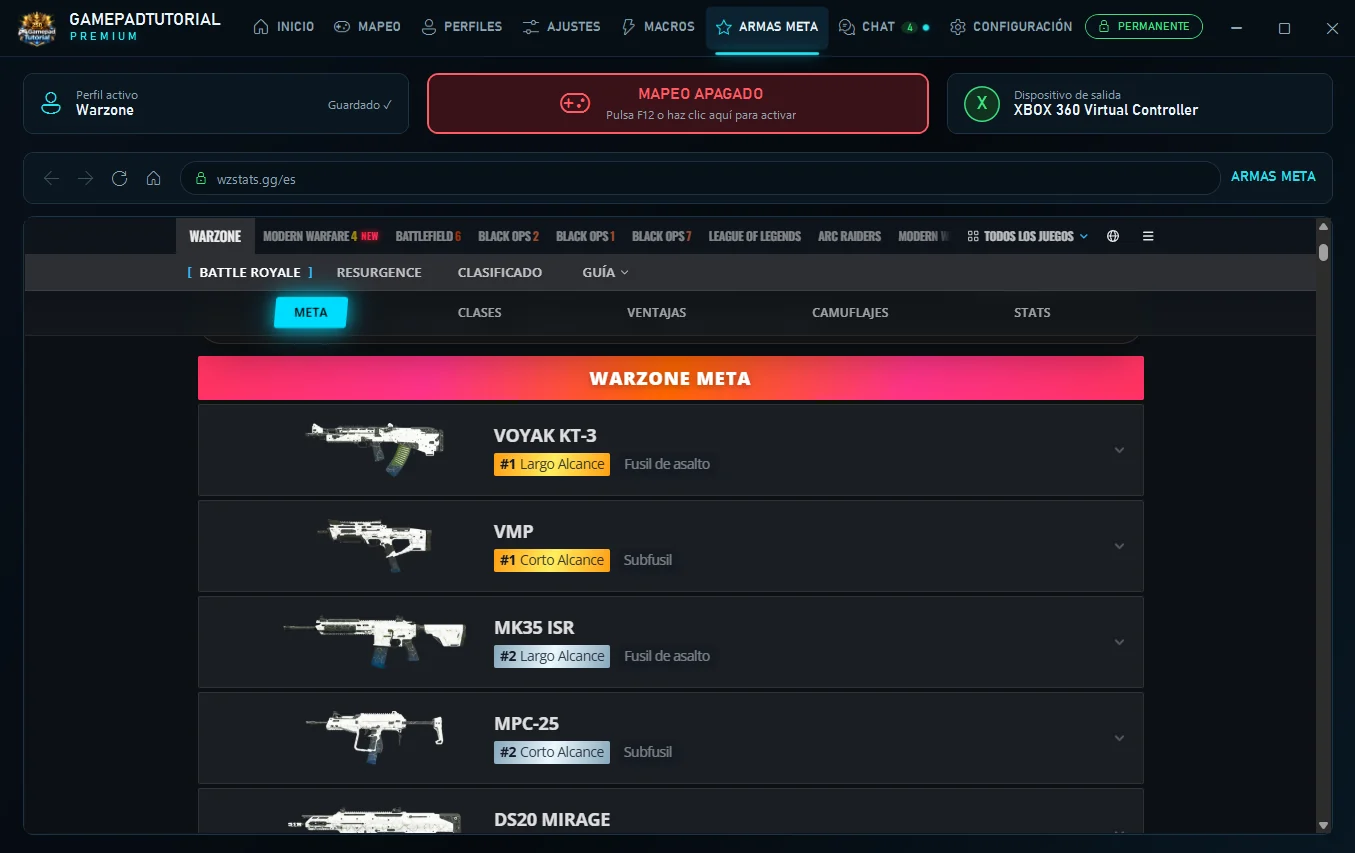
Check the strongest weapons and loadouts right now without leaving the program. It's a web page inside GamepadTutorial: you can browse, go back and reload like in a browser.
Community chat
Talk live with other GamepadTutorial Premium users. The first time, you choose a nickname: the name everyone else will see.
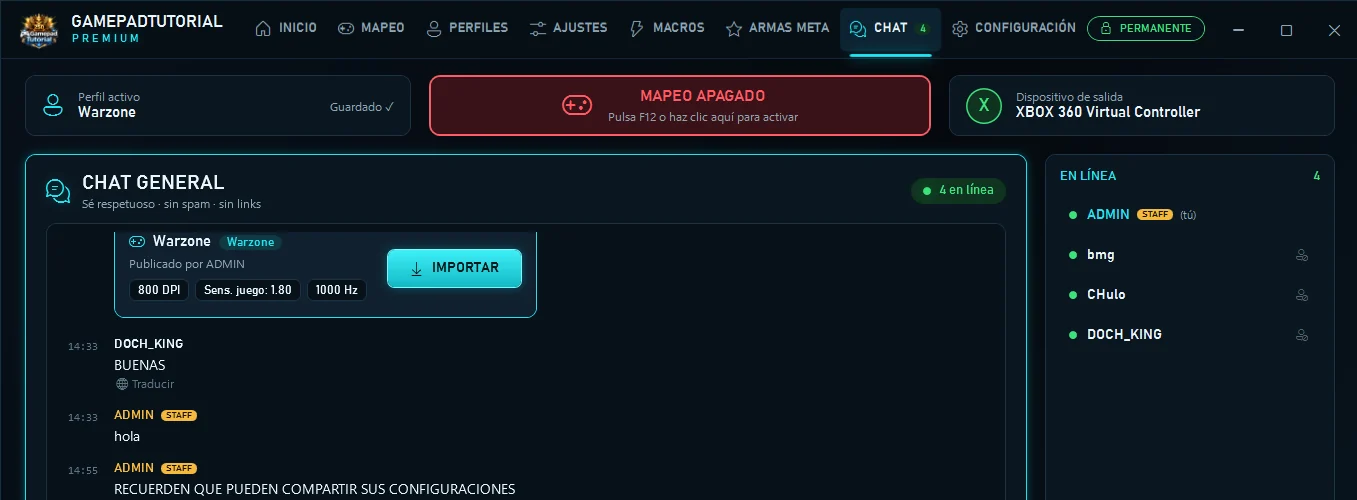
- Import. When someone shares their setup, you see their DPI, sensitivity and Hz. Click Import to use it in your profile.
- Users online. How many players are connected right now.
- User list. Click a name to send them a whisper (private message).
Under each message there's a Translate button to switch it between English and Spanish. You can also turn on Auto-translate.
Play
- Open GamepadTutorial Premium and pick your game's profile.
- Launch the game and choose controller input in its settings.
- Press F12. The game now receives the virtual controller. Press F12 again to go back to normal keyboard and mouse (for example, to type).
Tip: if you play through Steam and the controller shows up twice, turn off Steam Input in that game's properties.
Troubleshooting
The game doesn't detect the controller
Make sure mapping is on (F12) and that the output device says Xbox 360 Virtual Controller. If it doesn't appear, run the installer again to reinstall the driver and restart your PC.
It says my license is in use on another PC
If it's Lifetime, go to My account and click Reset PC. If it's a 7 or 30 day license, message us on support.
My aim shakes or feels heavy
Use the Kalman algorithm and move Stability ↔ Response in 10% steps. Check that the anti-deadzone matches the game's deadzone.
My antivirus blocks the program
Only download the installer from your account. If your antivirus blocks it, add it as an exception or message us and we'll help you.
Still have questions?
We help you on Discord, usually the same day.