
PC & Gaming Suite tutorial
What each section of the program does and how to use it so your PC and your games run better.
Install the program
You need 64-bit Windows 10 or 11. The program asks for administrator permission because it changes Windows settings (power, network, drivers).
- Go to My account and, under Downloads, get GamepadTutorialSuite_Setup.exe.
- Open it. If Windows shows "Windows protected your PC", click More info and then Run anyway.
- Follow the wizard. You can create a desktop shortcut. When it finishes, the program opens on its own.
Tip: to update, download the new installer from your account and install it on top. You keep your license and your settings.
Activate your license
- In My account, click Copy next to your key. Keys for this program start with GTS-.
- Open the program. In the license window, click Paste (or type the key) and then Activate license.
- Done. In Settings → License you'll see your license type and your PC name.
The license is linked to that PC and you only activate it once. If you switch PCs or reinstall Windows, go to My account and click Reset PC (once every 24 hours): the license is freed so you can activate it on the new one.
Note: mapper keys (MAP-) don't work in this program, and this program's keys don't work in the mapper. Each one has its own license.
Home: your PC at a glance
This is the first screen. It shows how your PC is doing right now and what you should do.
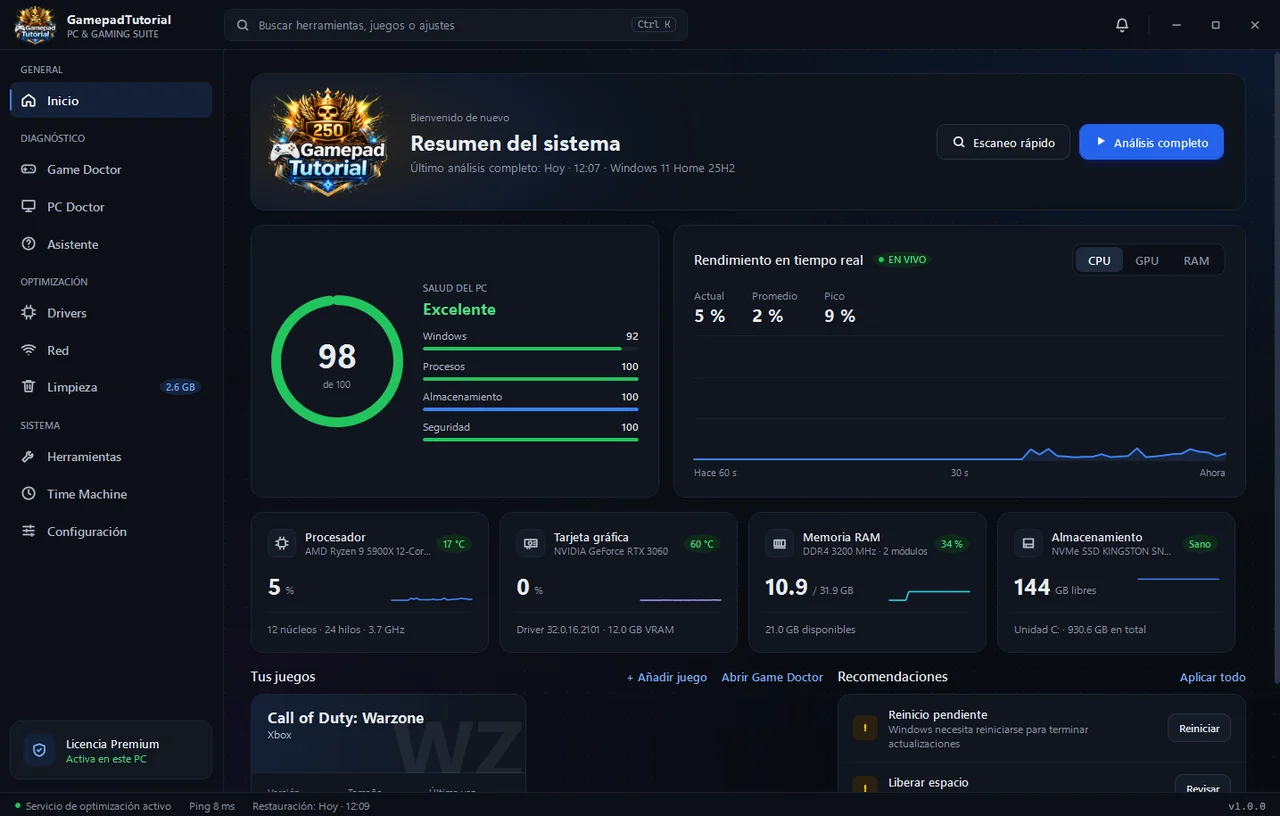
- Menu. Every section of the program. This guide covers them one by one.
- Quick scan and Full scan. The quick one checks the basics in seconds. The full one checks Windows, processes, disk and security in depth.
- PC health. A 0–100 score with details for Windows, processes, storage and security.
- Real-time performance. CPU, GPU and RAM usage over the last 60 seconds.
- Your hardware. Processor, graphics card, memory and disk, with temperature and status.
- Your games. Detected games (Warzone, Fortnite, Valorant). Launch them from here or open Game Doctor. Use + Add game to add any other.
- Recommendations. What you should do now, like restarting or freeing up space. Click each button or Apply all.
- Your license. Shows whether it's active on this PC.
Game Doctor: fix your games
Finds what makes a game crash, stutter or lag, and fixes it. It detects Warzone (Battle.net, Xbox app or Steam), Fortnite (Epic Games) and Valorant (Riot) automatically.
- Pick the game at the top right. It's analyzed as soon as you open the section; click Analyze again to repeat it. You'll see a score and the list of checks.
- What it checks: game files, settings, shader cache, runtimes (Visual C++ and DirectX), anti-cheat, overlays and recording, disk space and crashes in the last 7 days.
- Fix. Each problem has its own fix button. You can also click Fix all.
- When a game starts. Turn on automatic game mode: high performance power plan, high priority, no Game Bar recording and, if you want, closing background apps (you choose which in Settings).
- Verify files. If files are missing, the program tells you how to verify them in your launcher (Battle.net, Xbox, Steam, Epic or Riot).
About the shader cache: don't clear it out of habit. It only helps if you get stutters or crashes after a driver or game update. The first match afterwards will take a few minutes to compile shaders.
The program never injects anything into games or reads their memory: it only checks files and Windows settings.
PC Doctor: Windows health
Checks Windows in depth and tells you what's wrong and how to fix it.
- Windows: system file integrity (DISM), essential services, updates and pending restarts.
- Processes: memory usage and programs using too much.
- Storage: free space and disk health (SMART). If a disk is failing, it warns you to back up.
- Security: active, up-to-date antivirus and firewall turned on.
- Repair Windows runs DISM and SFC in a separate window. It takes 15 to 30 minutes: don't close it until it finishes.
Assistant: tell us what's wrong
If you don't know where to start, the Assistant checks only what matters for your problem.
- Pick the problem: "Low FPS", "I have lag", "Game crashes", "Game won't open", "My PC is slow" or "Out of space".
- Pick the game if the problem is with a game, and click Start diagnosis.
- You'll see what's fine and what's failing. Click Fix everything possible or fix them one by one.
Nothing changes without your permission.
Drivers: always up to date
Detects your devices and looks for new drivers on Windows Update, an official source.
- The list shows each device with its installed version, the available one and its status: Up to date, Update available or Missing driver.
- Click Update on one, or Update all. A Windows restore point is created first, just in case.
- If Windows has no driver for a device, the program opens Device Manager so you can get it from the manufacturer's website.
Graphics card: for NVIDIA or AMD, the newest driver usually shows up first in the manufacturer's app (NVIDIA App or AMD Adrenalin).
Network: less ping and lag
- Live ping: latency, variation (jitter) and packet loss over the last 2 minutes.
- Ping to game servers: approximate latency to each region's data centers, so you know which one suits you.
- DNS server: click Measure speed and apply the fastest one (Cloudflare, Google, Quad9…). You can go back to your provider's from Time Machine.
- Speed test: measures your download and upload.
- Repair network: flushes the DNS cache and resets Winsock and TCP/IP. Use it if your internet fails. Restart your PC afterwards.
Tip: if you play over Wi-Fi, an Ethernet cable is what lowers ping and lag spikes the most.
Cleanup: free up space safely
- The section scans on its own when you open it. You'll see how much each category takes: Windows temp files, Windows Update leftovers, logs, crash dumps, browser and launcher cache, game logs, shader cache and the recycle bin.
- Check what you want to delete and click Clean (the button shows how much you'll free). Only safe files are removed: browser cache cleanup doesn't delete your passwords or sessions.
- If a program is open, its files are skipped so nothing breaks.
Tools: advanced settings
- Game tweaks: Windows game mode, hardware-accelerated GPU scheduling, no Game Bar recording, game priority and no mouse acceleration.
- Network optimization: turns off Nagle's algorithm and network throttling for lower latency.
- Power plan: switch between Balanced, High performance and Ultimate performance. On laptops, Ultimate performance uses more battery.
- Startup manager: turn off programs that start with Windows and slow it down.
- Settings profiles: save your game's settings (for example "Competitive" and "Quality") and restore them anytime.
- App manager to uninstall programs, Repair system files and shortcuts to Windows utilities.
Safe: every tweak is saved in Time Machine with its previous value. Turning it off goes back to the Windows default. Some need a restart.
Time Machine: undo any change
Everything the program changes is logged here with its original value: tweaks, DNS, power plan, services, game settings, drivers and cleanups.
- History: pick a change and click Undo these changes. The previous values are restored.
- Windows points: system restore points. One is created automatically before installing drivers; you can also click Create point now.
- If something serious goes wrong, Open Windows System Restore takes your PC back to an earlier point.
Important: for Windows restore points to exist, "System Protection" must be turned on for drive C:. If it isn't, the program warns you.
Settings
- Language: Spanish or English. The change applies instantly.
- General: start with Windows, minimize to tray and run a quick scan on open.
- Optimization: automatic restore points, automatic game mode and confirm before deleting.
- Notifications: new drivers, temperature alerts and weekly summary.
- Apps closed in game mode: type the programs you want closed while you play (for example OneDrive or Spotify).
- License and About: your license, the program version, check for updates and the data folder.
Troubleshooting
- "The key is not valid": make sure it's a GTS- key, copy it with the Copy button in My account and try again.
- "Already activated on another device": go to My account and click Reset PC. Then activate it on the new PC.
- My game isn't detected: in Game Doctor click + Add game and choose the game's .exe.
- Something stopped working after a change: go to Time Machine and undo the last change.
- Temperature: if your PC doesn't report temperatures, the program says so. It's not an error.
Still need help? Write to us in Support or on our Discord.